A Simple System for Sorting a Crowded Downloads Folder
A small folder structure and a short review habit can make downloaded files easier to find without turning file sorting into another project.
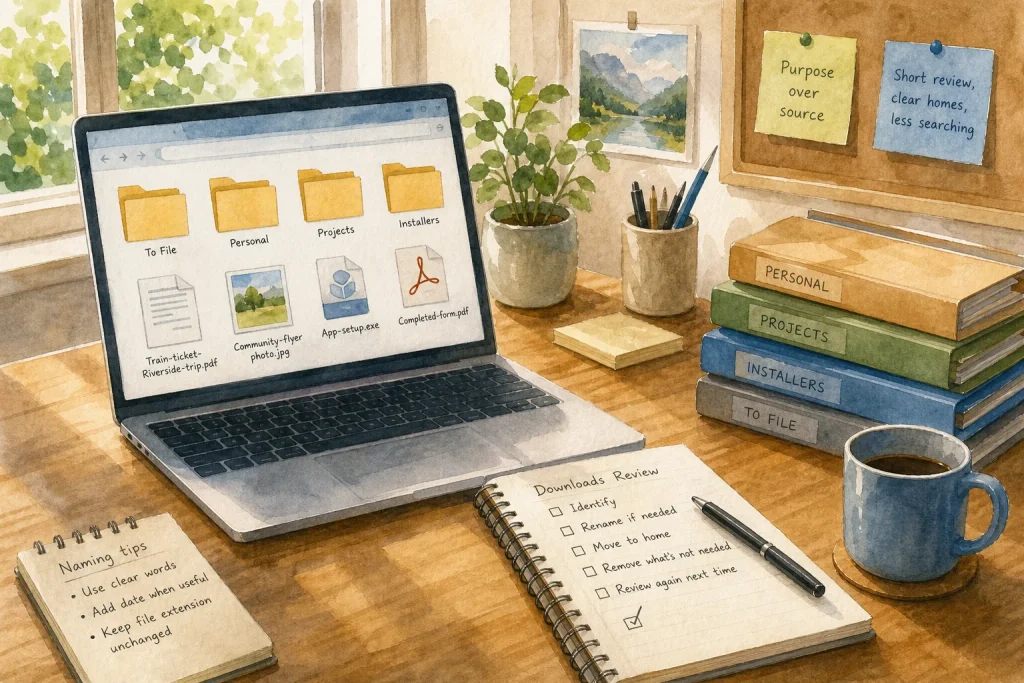
You save a train ticket PDF, download a photo for a school form, and then grab a software installer. A week later, all three sit beside dozens of other files in Downloads, and the ticket is hard to spot. The fix is not a complicated filing system. It is a small set of destinations, a clear rule for choosing among them, and a repeatable moment to review what remains.
Give each file a useful destination
A downloads folder works best as a temporary landing place, not a permanent archive. Files arrive there from browsers, email, messaging apps, and other tools, often with vague names such as “document” or “final.” The folder’s job is to hold those arrivals until you decide what they are for.
Create a few folders based on how you will use the files, rather than where they came from. A modest setup might include:
- To File: items you have not identified or decided how to handle.
- Personal: records you may need again, such as travel documents or completed forms.
- Projects: materials tied to an active project, such as image assets or reference PDFs.
- Installers: software setup files, kept only while you need them.
These are starting points, not mandatory categories. If you rarely download project materials, skip that folder. If you handle many receipts, a dedicated Receipts folder may be more useful than Personal. Every extra folder asks you to make another choice, so add one only when it solves a recurring problem.
Choose by purpose, then make the name clear
When deciding where a file belongs, ask what you will want to do with it later. A ticket needed for an upcoming trip belongs with travel records, even if it arrived through email. A picture being used in a flyer belongs with that project, even if it came from a browser. Purpose is usually a better guide than the download source.
Give important files names that make sense outside the moment you downloaded them. “Boarding-pass.pdf” may be clear while you are booking, but “Train-ticket-Riverside-trip.pdf” is easier to recognize later. Avoid changing the file extension at the end, such as .pdf or .jpg; that suffix tells the device what kind of file it is. If the original name already identifies the file, leave it alone.
For files you may need to find by date, use a consistent date style in the name, such as “2025-04 travel receipt.” The point is not to rename everything. Rename files when a vague title could make future searching uncertain.
Keep temporary files temporary
Some downloads are useful only for a short time. An installer may be needed to set up an application, while a duplicate image or an outdated draft may have no continuing role. Treat these differently from records you expect to keep. Once an installer has done its job, remove it if you do not need it for a planned reinstall. Before deleting any file, open it or check its details if its purpose is unclear.
Be cautious with files that sync across devices or are shared with other people. Deleting an item in a synced folder may remove it elsewhere, and a shared document may be someone else’s responsibility. If you are unsure, check the sync or sharing status before removing it. For important records, use the appropriate long-term location or backup rather than relying on Downloads alone.
Build a review habit around a real cue
Sorting is easier when it attaches to something that already happens. You might review Downloads after paying bills, before closing your computer for the weekend, or after finishing a project. Open the folder, identify anything still loose, move files to their chosen homes, and remove items you have confirmed are no longer needed.
A review does not need to empty the folder. Some files may still be in use, and forcing every item into a final category can create rushed decisions. Move uncertain items into To File, then revisit that folder during the next review. If the same kind of item repeatedly lands there, that is a useful signal: either you need a new category or a clearer rule.
Hypothetical worked example
Imagine that Maya’s Downloads folder contains a travel ticket, a phone photo for a community flyer, an application installer, and a PDF whose filename is simply “scan.” She creates Personal, Projects, and Installers folders, plus To File for items she cannot identify yet. She moves the ticket to Personal and the photo into the flyer project’s folder, then renames the ticket and photo with descriptive names. She leaves the installer in Installers while setting up the application. She opens the scan, sees that it is a completed form she may need, and renames it before moving it to Personal. After setup, she removes the installer if she has no reason to keep it. The expected result is a smaller landing folder and clearer locations for the files she intends to retain; the tradeoff is a brief review now instead of searching later.
Adjust the system when it creates friction
A useful system should be easy to remember when you are busy. If you keep hesitating between two folders, simplify the categories or write a short rule for the distinction. For instance, “Personal holds records; Projects holds materials used to make something” separates a form from a flyer image without requiring a detailed hierarchy.
Search can help when a file’s location slips your mind, but it works better when names contain recognizable words. Use the search field in your file manager to look for a distinctive term, and confirm the result before opening or deleting it. The aim is not perfect order. It is a small, dependable routine that makes the next download easier to place and the files you keep easier to find.